
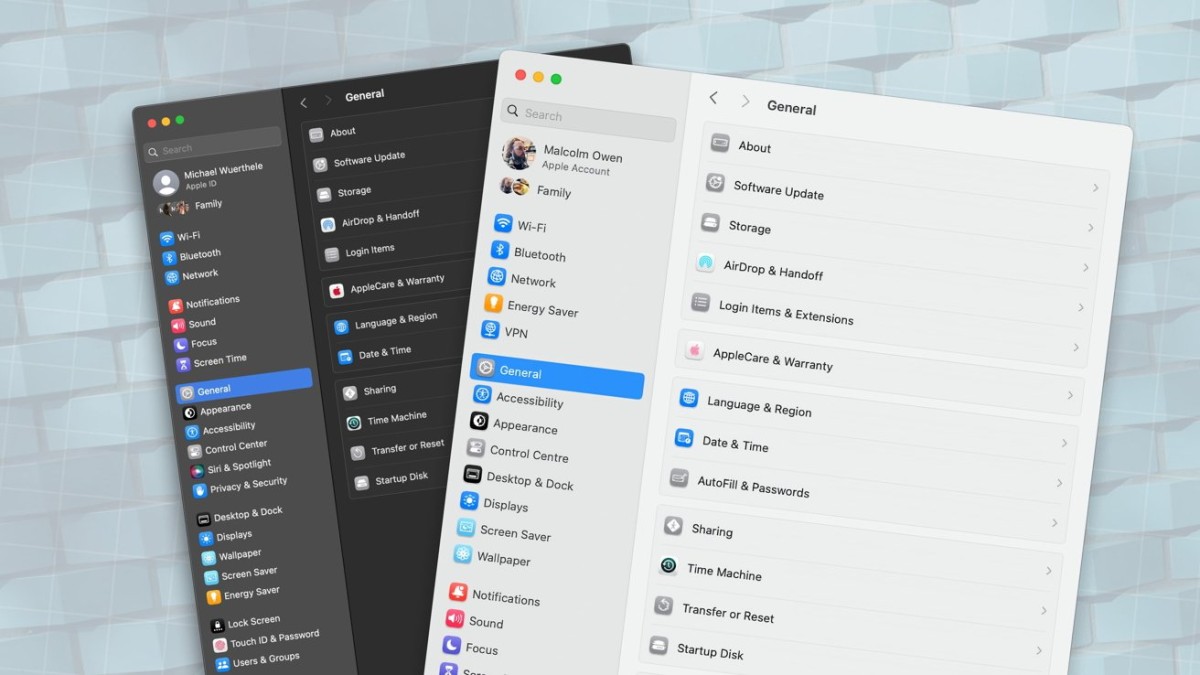
Apple ID to Apple Account
One of the subtle yet significant changes is the rebranding of "Apple ID" to "Apple Account" in the System Settings app. This change aims to make the terminology more intuitive for users. Previously, macOS Sonoma displayed the user's name followed by "Apple ID." In macOS Sequoia, this has been updated to "Apple Account."
Sidebar Reorganization
The System Settings app in macOS Sequoia features a reorganized sidebar, which may initially confuse users familiar with the Sonoma layout but ultimately aims to improve accessibility and usability.
- Network and Connectivity: The top section still includes the trio of network settings but now has Energy Saver and a separated VPN section moved up.
- General and Appearance Settings: The General, Appearance, Accessibility, and Control Center settings have been moved higher up the list.
- Desktop and Dock Settings: Desktop & Dock, Displays, Screen Saver, and Wallpaper settings now follow the General block.
- Notifications and Sound: The Notifications, Sound, Focus, and Screen Time settings are now further down but still grouped together.
- Privacy and Security: These settings are now positioned lower, alongside Lock Screen, Login Password, and Users & Groups settings.
- Siri and Spotlight: These are now split into separate sections and grouped with Internet Accounts, Game Center, and Wallet & Apple Pay.
- Peripherals: Settings for Keyboard, Mouse, Trackpad, Game Controllers, and Printers & Scanners are now at the bottom of the sidebar.
Password Management
A significant change in macOS Sequoia is the relocation of password management from System Settings to a dedicated Passwords app. This new app offers a more user-friendly interface and includes features such as:
- Reminders-style Sections: The app features sections on the left side for easier navigation.
- Family Sharing: An option to easily share passwords with family members.
Despite this move, some password-related settings remain in System Settings, such as managing the Login Password and the option for Apple Watch to unlock the Mac.
These changes aim to streamline the user experience, making it easier for users to navigate and manage their Mac settings. While it may take some time to get used to the new layout, the updates are designed to enhance overall usability and functionality.





