
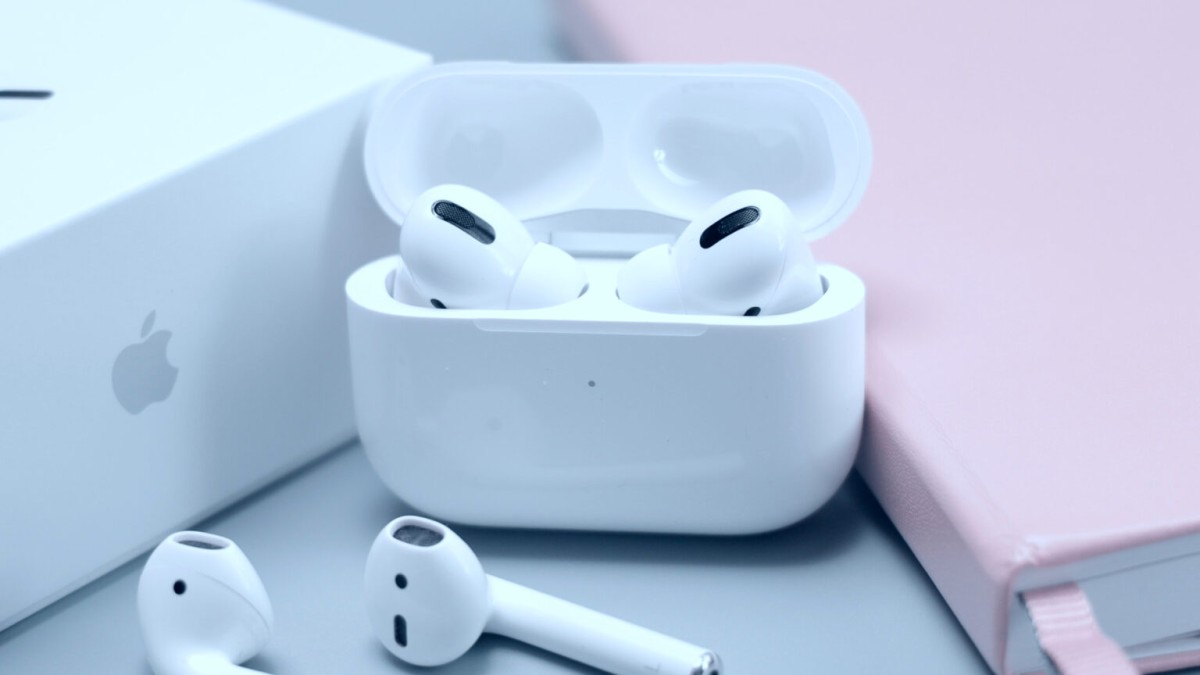
If the touch controls on your AirPods don’t work as intended, you won’t be able to skip through tracks or trigger Siri which isn’t convenient at all. Don’t worry, though, as there are some simple solutions that you can employ to fix this issue. Here’s what to do if your AirPods Pro touch controls are not working.
1. CLEAN THE OUTER SURFACE OF THE AIRPODS
The touch sensors on the AirPods need to detect proper contact with your fingers to register a touch or a press. For this to happen, it’s important for the external surface of the earbuds to be clean. If your AirPods have become dirty, get hold of a microfiber cloth and clean the external surface thoroughly.
Then, try using the AirPods tap controls to see if they work. Also, if you’re wearing gloves, you may not be able to use touch controls, so ensure you take them off before trying.
2. ASSIGN TAP OR PRESS FUNCTIONS ON THE AIRPODS
Apple gives you the option to customize touch controls on the AirPods, meaning you can assign taps or presses to trigger certain actions. You also get the option to disable any function when tap gestures are performed.
So, if you’ve disabled the function by mistake, touch controls will not work. Here’s how to assign tap or press functions if your AirPods double tap is not working.
Step 1: Open the Settings app on your iPhone or iPad. Tap on your AirPods’ name that appears at the top.
Alternative: If you don’t see this option, head over to the Bluetooth section and tap on the ‘i’ button next to your AirPods.
Step 2: Under ‘Double-tap AirPod’ or ‘Press and hold AirPods’ depending on which version of the AirPods you have, first select the Left option.
Step 3: Select any of the actions other than Off. If you set it to off, touch controls will be disabled and your AirPods Pro controls will not work.
Step 4: Head back to the previous menu and select Right. Do the same thing here and select any action of your choice.
This will ensure your AirPods touch controls work as intended.
Moreover, iOS 16.1 allows you to disable the new touch volume controls on the AirPods Pro 2nd Generation. Disabling this toggle could also be a reason why your AirPods Pro touch controls are not working.





