
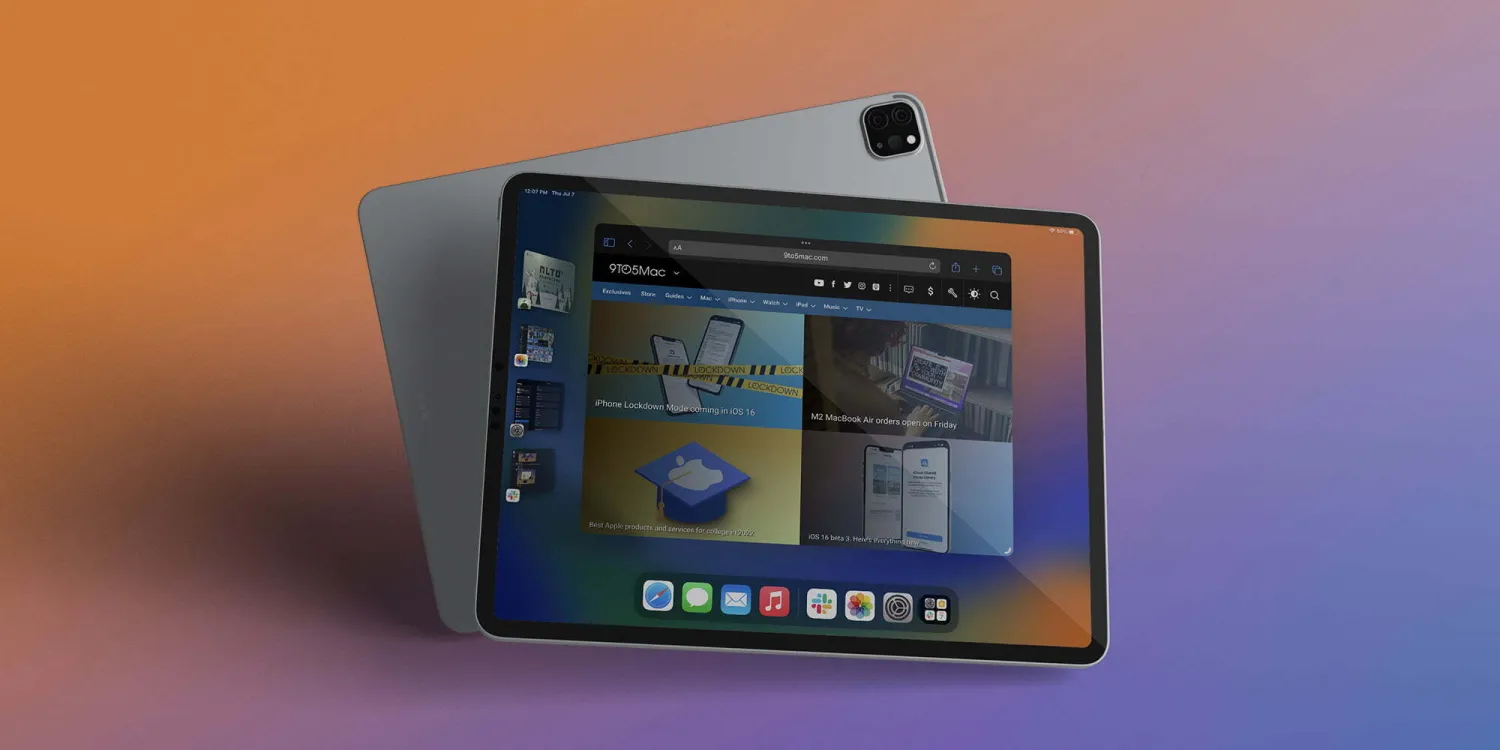
Landing as a headlining – and controversial – new feature for compatible iPads and Macs in iPadOS 16.1 and macOS Ventura, here’s Apple’s description of how Stage Manager works:
“Stage Manager automatically organizes open apps and windows so users can concentrate on their work and still see everything in a single glance. The current window users are working in is displayed prominently in the center, and other open windows appear on the left-hand side so they can quickly and easily switch between tasks. Users can also group windows together when working on specific tasks or projects that require different apps.”
It’s been a polarizing feature from a few angles including how it works (and doesn’t), bugs and quirks, and what iPads are supported. Apple did eventually expand the feature to older iPad Pro models, but removed full-screen external display support from all iPads for now. But nonetheless, here’s how to try it.
Stage Manager on iPad: How it works in iPadOS 16
Turn on Stage Manager on iPad
- Running iPadOS 16.1 on an M1, A12Z, or A12X iPad, open Control Center (pull down from the top right corner of your screen or click in the top right corner)
- Tap the Stage Manager button (3 little and 1 big square icon near the bottom right corner)
- The first time you enable Stage Manager you should see a splash screen with a brief explanation and a button to Turn on Stage Manager
- After the first time you turn on Stage Manager, you can quickly toggle it on and off with one tap in Control Center
- Stage Manager is automatically added to Control Center on compatible iPads with iPadOS 16.1 but you can also reorder where the button sits by heading to Settings > Control Center
Here’s how the process looks on iPad:
In use
- Once Stage Manager is turned on and you’ve launched an app, look for the curved black line in the bottom right corner of a window to resize it
- If you switch to an app and it’s full screen, resize with the bottom right corner
- You should see your other open apps on the left-hand side – move your iPad cursor to the far left edge if your other apps are hidden
- You can drag multiple apps into one Stage Manager space
- Tap the three-dot icon in the top-center of an app to close, minimize, and get other options
- For now, Stage Manager full-screen external display support has been pulled
- Coming later to M1 and M2 iPads, but not older iPad Pro models





