
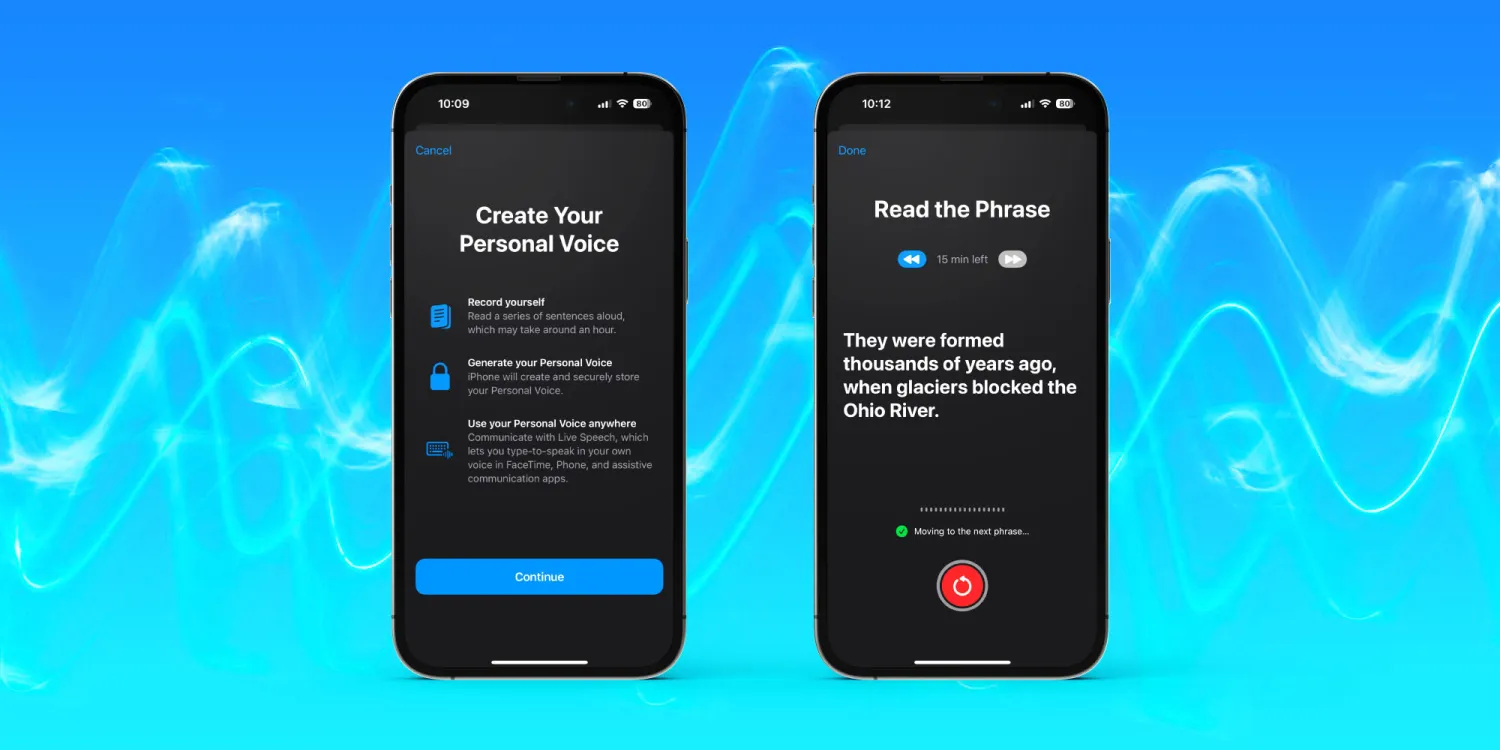
Incredibly, with Personal Voice, users can save their voice in about an hour when that normally takes weeks, not to mention traditional voice banking being a costly service.
With Personal Voice on iPhone, you’ll read a series of random sentences. It needs a total of 15 minutes of you speaking – Apple notes that it may take “around an hour” to complete the whole process.
But the great part is you can do this in chunks, whenever you need to stop, your progress is saved and you can continue when it works.
As a refresher, Personal Voice on iPhone or iPad is a very valuable feature for those with ALS (amyotrophic lateral sclerosis) and other health conditions that can impact the ability to speak.
But even for healthy individuals, it’s useful to set up to preserve your voice for the future – kind of like free voice insurance. Apple highlights Personal Voices are securely stored on iPhone.
Once created, the new Live Speech feature lets users type-to-speak with FaceTime, Phone, and third-party apps that support assistive communication.
How to set up Personal Voice on iPhone with iOS 17
iOS 17 is currently in beta. Read more on how to install the software if you’d like to test out features like Personal Voice and more.
- On your iPhone running the iOS 17 beta, open the Settings app
- Swipe down and tap Accessibility
- Swipe down again, under Speech, choose Personal Voice
- Tap Create a Personal Voice
- Make sure to follow the prompts like recording in a quiet place, holding your iPhone “about 6 inches from your mouth,” and speaking naturally
- Conveniently, you can start the process and stop at any time and come back to finish setting up Personal Voice





