
iMessage on Windows… sort of
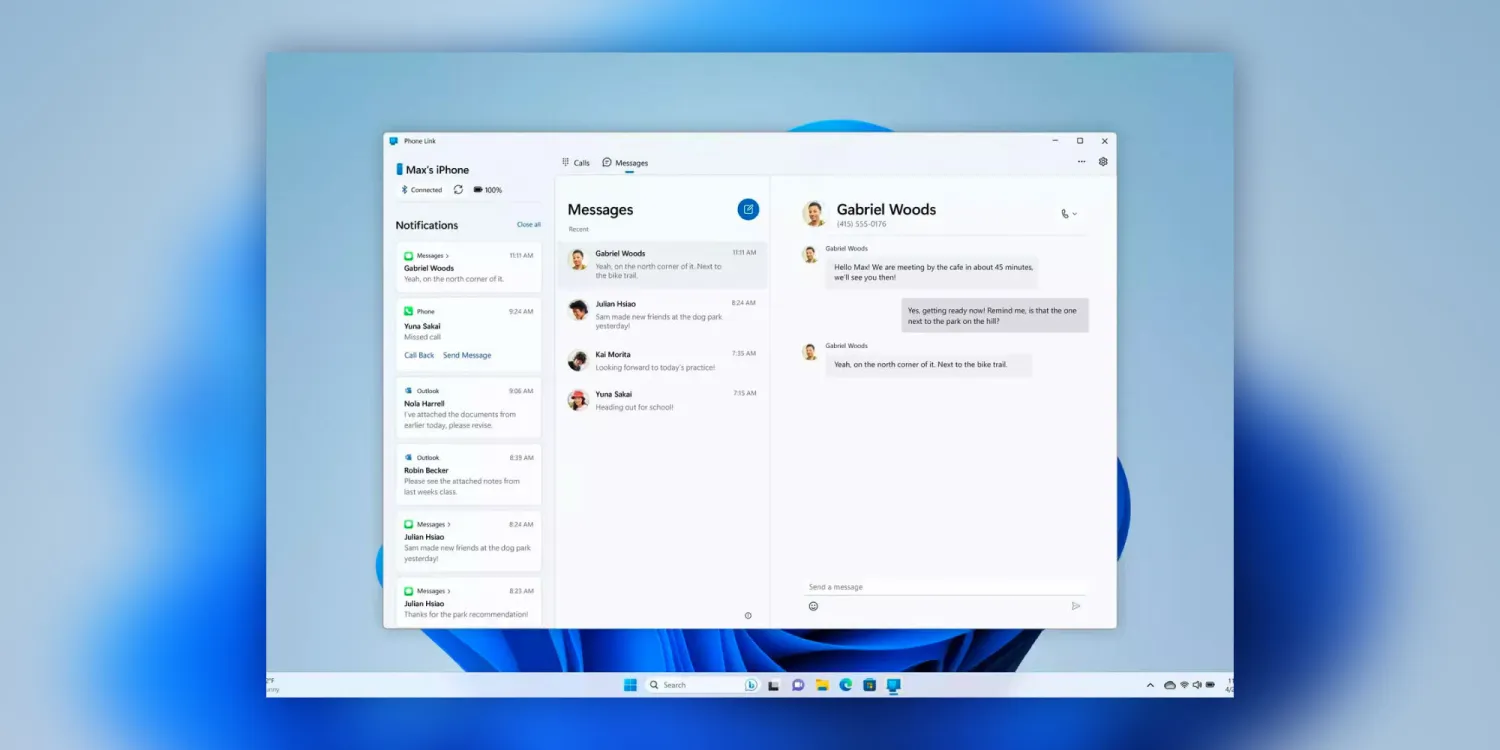
As reported by The Verge, the Phone Link app for Windows is meant to mirror your phone on your PC for things like notifications, phone calls, and messages. The app has historically only supported Android devices, but that’s changing today with the addition of iPhone support.
The new version of Phone Link for Windows uses Bluetooth to link a user’s iPhone to their Windows PC. It then “passes commands and messages” to the Messages app on that paired iPhone. This means you can send and receive all iPhone messages — text messages and iMessages — through the Phone Link app on your PC.
“We send the messages back and forth via Bluetooth, Apple I think in turn sends those as iMessage once it gets onto their system,” Yusuf Mehdi, Microsoft’s head of consumer marketing, explained to The Verge.
This is clearly a workaround since Apple doesn’t natively support Messages via any platforms other than its own. With that in mind, there are a couple of limitations.
For instance, you can’t see the full message history in conversations via the Phone Link app. Instead, you’ll only see messages that “have been sent or received using Phone Link.” Microsoft also isn’t able to differentiate between text messages and iMessages, so there are no blue or green bubbles.
The biggest limitation, however, is that you won’t be able to send pictures in messages nor will you be able to participate in group messages.
On the official Windows blog, Microsoft explains:
After choosing iPhone, the guided installation will kick off to pair your iPhone. You will be directed to follow a set of steps that will guide you to pair your iPhone and PC over Bluetooth. This will initiate after you scan a QR code shown on your screen, and then move on to the confirmation steps that helps us confirm the phone and PC are in range.
During this step, you will be asked to confirm the code in Phone Link matches the code shown on your iPhone. Once you complete pairing, you’ll be asked to grant a set of permissions that allow us to get all your favorite content sync’d over to Phone Link.
iPhone integration into the Phone Link app is available starting today for a “small percentage” of Windows Insiders enrolled in the Dev, Beta, and Release Preview channels. It will roll out to more users over time.





