
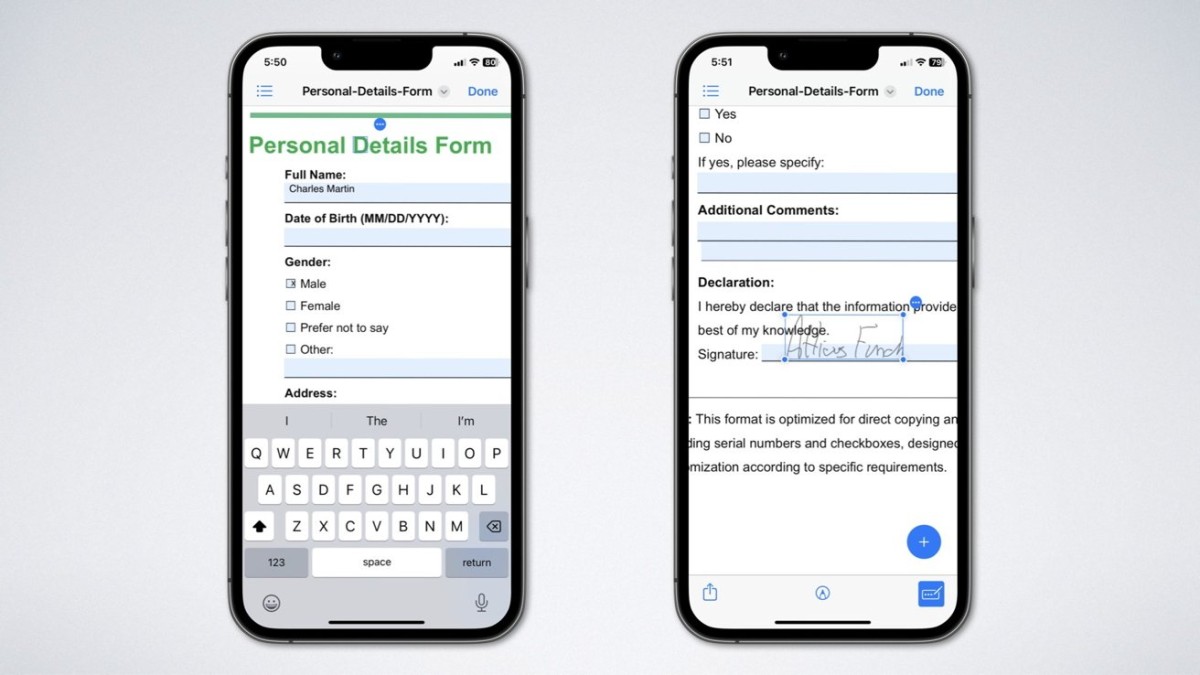
Guide: Tired of paperwork piling up? Learn how to tackle PDF forms on your iPhone or iPad hassle-free.
Filling Out PDF Forms:
- Prep Your Contacts: Before diving in, ensure your contact card contains all necessary info. This saves time by autofilling details like name, address, and more.
- Tap and Type: Open the PDF form on your device. Tap on the fields to fill out details. Use predictive text or manually input data if needed.
- For Others: Adding info for a family member? Simply add their details to Contacts and select "Choose Other" when prompted.
Signing PDFs:
- Create Your Signature: Open the PDF in Markup. Tap the plus sign, choose "Add Signature," then sign using your finger or stylus.
- Label It: Label your signature for future use, like "Legal Name." You can have multiple signatures ready.
- Place and Resize: Once done, position your signature where needed on the PDF.
- Save and Send: Tap "Done" to finalize. Your form is now ready to be shared, with signatures and details intact.
Go forth and conquer those forms, no Mac needed!





