
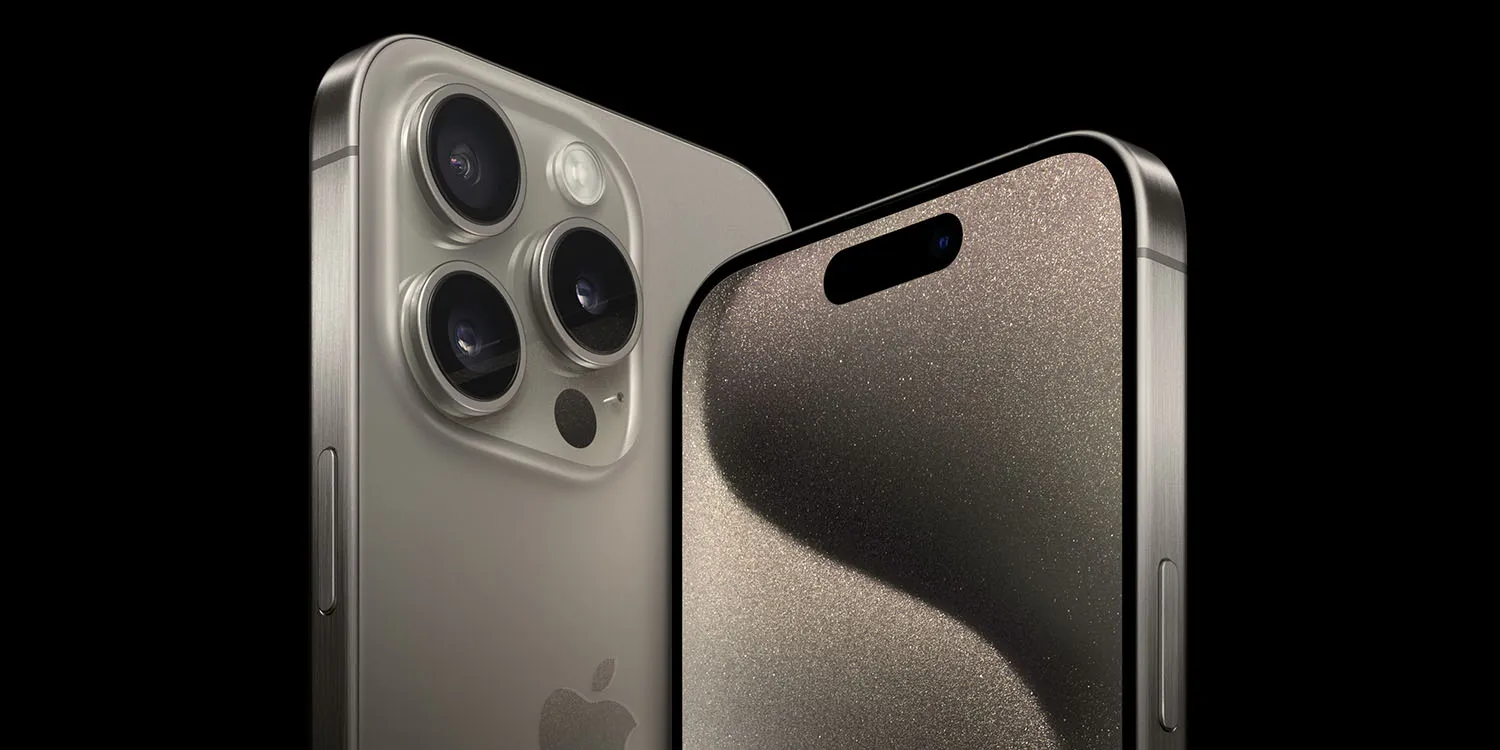
What does eSIM mean for iPhone 15?
The iPhone lineup has supported eSIM technology for many years. The iPhone XS was the first model to add the technology and each new iPhone since then has supported eSIM. Each of those iPhone models also offered a nano SIM card slot as well. So if you didn’t want to use an eSIM, you didn’t have to.
eSIMs, sometimes referred to as embedded SIMs, are still SIM cards, but they’re electronically programmable. This means there is no physical SIM card that has to be inserted into your iPhone or activated. Instead, you log in with your carrier information, and the carrier will remotely provision your iPhone so it can be connected to their network.
Once this process has been completed, your iPhone works just as it would with a physical SIM card. It’s also important to note that only the iPhone 15 models sold in the United States will be eSIM-only. Models sold in other countries will still have a nano-SIM card slot.
Every iPhone 15 model can store at least eight different eSIMs, and even more in some instances. Two can be in use at one time.
Option 1: Set up iPhone 15 ‘eSIM Quick Transfer’
In a support document, Apple explains that you’ll be able to convert your physical SIM to an eSIM during the iPhone 15 setup process. This can be done even if you’ve never used an eSIM before.
During the setup process, you’ll be asked to transfer your SIM from your old iPhone to your new iPhone. This is also the process you’ll use if you’re transferring an existing eSIM from your old iPhone to your new iPhone 15.
- Choose a cellular plan to transfer from another device. If you don’t see a list of numbers, tap Transfer From Another Device.
- Check for instructions on your previous iPhone to confirm the transfer. To confirm, tap Transfer or, if asked for a verification code, enter the code that’s displayed on your new iPhone.
- Wait for the cellular plan to activate on your new iPhone. Your previous SIM is deactivated when the cellular plan on your new iPhone activates.
- If a banner appears on your new iPhone that says Finish Setting Up Your Carrier’s Cellular Plan, tap it. You will be redirected to your carrier’s webpage to transfer your eSIM. If you need help, contact your carrier.
Option 2: Use a QR code from your carrier
Some carriers don’t support what Apple refers to as “eSIM Quick Transfer.” If this is the case, you’ll have to scan a QR code from your carrier to activate the eSIM inside your iPhone 15. When you reach the “Set up Cellular” screen in the iPhone 15 setup process, there will be an option to use a QR code.
This will walk you through the process of scanning the QR code provided by your carrier to activate your iPhone 15’s eSIM. The process of getting that QR code will vary from carrier to carrier.
Option 3: Convert a physical SIM to an eSIM with your current iPhone
If you want to get a head start on the transition to eSIM, you can convert the physical SIM inside your current iPhone to an eSIM. From there, you’ll be able to transfer that eSIM to your new iPhone 15 when it arrives.
- On your iPhone, go to Settings > Cellular.
- Tap Convert to eSIM. If you don’t see this option, you’ll have to contact your carrier.
- Tap Convert Cellular Plan.
- Choose Convert to eSIM.
- Wait for your eSIM to activate. Once this is complete, your previous SIM card is deactivated.
- Remove the physical SIM and reboot your iPhone.
If you already have an iPhone 14
And if you already have an iPhone 14, your transition to iPhone 15 will be seamless. You’ll be prompted to move your eSIM from your iPhone 14 to your iPhone 15 during the setup process. This should only take a few minutes, and then you’ll be ready to go.





