
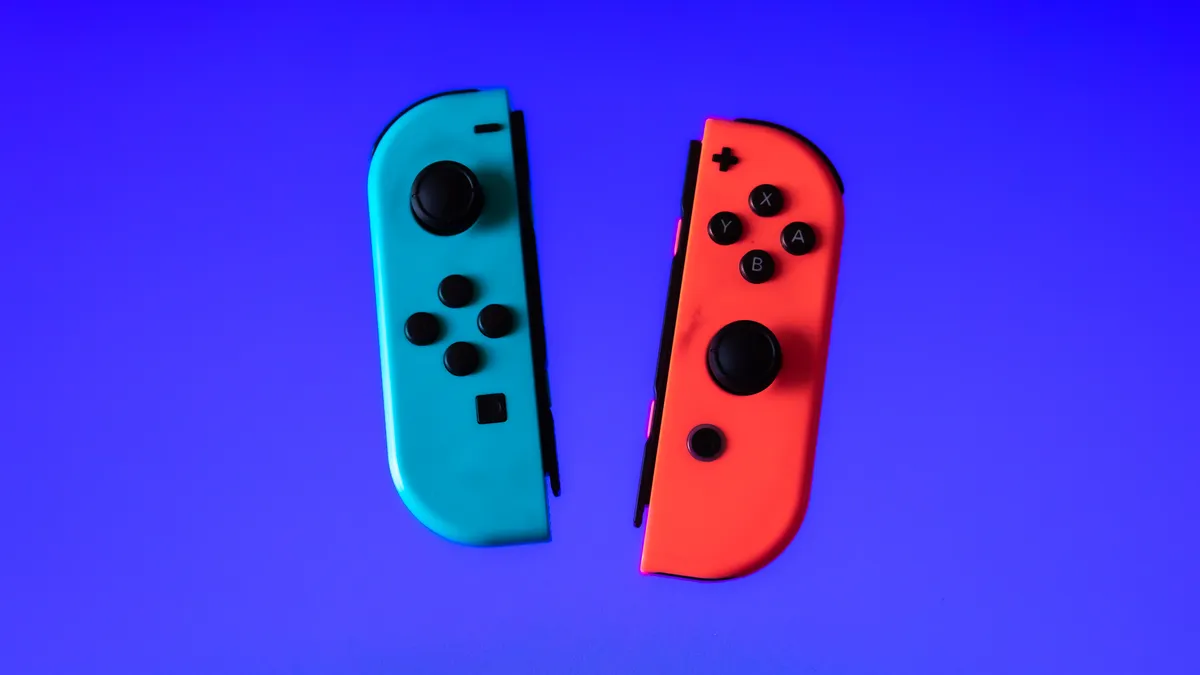
Your Joy-Cons are not only useful for gaming on your Switch. Thanks to iOS 16, you can now pair the Nintendo controllers to your iPhone (and iPad when iPadOS 16 releases later this year) for gaming.
You can download iOS 16 right now. And here are the first three things you should do once you install the new Apple software.
In the last few years, game-makers have introduced more complicated gameplay to the mobile experience. Services like Xbox Cloud Gaming and GeForce Now allow you to play games like Call of Duty, Fortnite and Apex Legends, which can be difficult to tame on your mobile device. Your phone or tablet has a smaller screen than your TV, which means less real estate for visuals and controls, and so a gaming controller might be necessary.
Read more: Play Fortnite on iPhone: A New Workaround Brings the Game Back to iOS
Third-party controllers aren't new to Apple, though. Right now, you can pair both the DualSense from PlayStation and the wireless controller for Xbox to your iPhone or iPad. And controllers from other companies, like the Backbone One and the Razer Kishi, are made specifically for mobile gaming.
Check out: Best Controllers and Accessories for Xbox Cloud Gaming
However, if you already own a Nintendo Switch, there's no need to purchase a third-party gaming controller. You've got two attached to both sides of your console. And best of all, pairing the Joy-Cons to your iPhone or iPad takes only a few seconds.
If you want to check out more, read five hidden features coming in the new operating system for the iPhone
How to pair your Joy-Cons to your iPhone or iPad
To start, you'll want to make sure that your Joy-Cons are charged and ready for use. If not, simply attach them to the Nintendo Switch while it's charging in the dock. Once your Joy-Cons are charged and ready to go, slide them off of your console and do the following:
1. First, press and hold down the black pairing button on top of the Joy-Con until the green light starts running back and forth. This means the Joy-Con is now in pairing mode.
2. Next, on your iPhone or iPad, go to Settings > Bluetooth.
3. Now, scroll down and find your Joy-Con under Other Devices. You should see either Joy-Con (L) or Joy-Con (R), depending on which Joy-Con you're currently pairing.
4. Finally, tap the Joy-Con option to pair it. Repeat this process for the other Joy-Con, if needed.





