
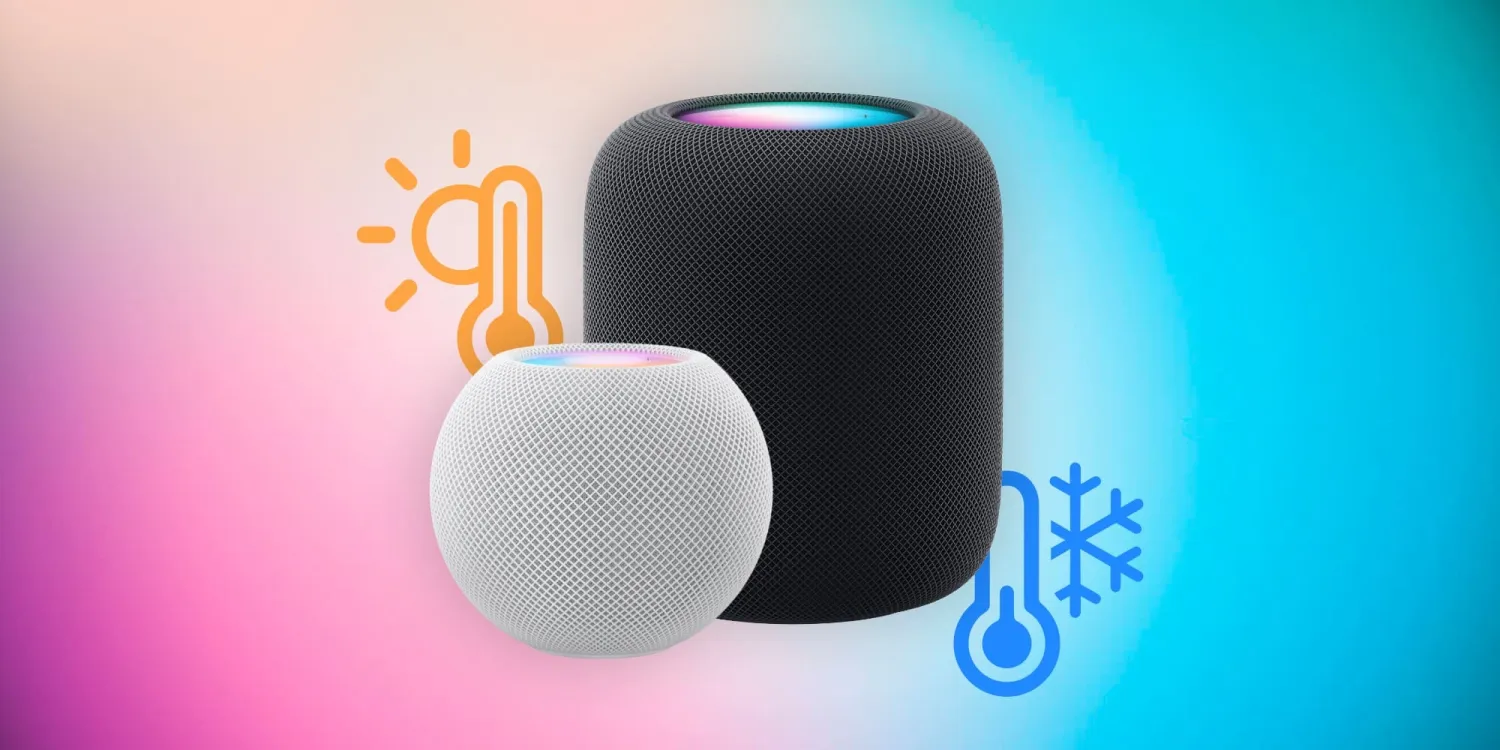
Apple activated the dormant temperature and humidity sensors in the HomePod mini with its 16.3 update and the revived HomePod 2 also comes with the same hardware and software capabilities.
For now, there’s no option to set a HomePod as your primary thermostat – the default remains the HomeKit thermostat in your home if you have one. But you can use the temp and humidity readings in the rooms you have HomePod mini or HomePod 2 to set up automations like turning on your furnace or A/C, turning on a smart plug controlling a heater or humidifier, etc.
- Related: Here’s how HomePod 2 compares to the original and HomePod mini
Below we’ll cover how to use the built-in HomePod temperature and humidity sensors plus how to add this functionality to the Home app with some third-party devices.
How to use HomePod temperature and humidity sensors
Note: Temperature and humidity sensors are only included with HomePod 2 and HomePod mini
- Make sure your iPhone and HomePod mini or HomePod 2 are all running iOS 16.3/HomePod software 16.3
- HomePod 2 is shipping for some users with 16.0 – check and update your software by heading to the Home app > your HomePod > swipe down to the gear icon > look for the available update at the top
- If you can’t update – read our guide on a known bug and workaround
- Open the Home app
- Tap Climate at the top
- Now you should see a temperature and humidity range – tap one to see more details
- For a bit of time after updating your HomePods to 16.3, you may see a Calibrating message before live data is available
- When you tap temp or humidity, you’ll see all devices reporting data including HomePod mini, HomePod 2, and HomeKit-enabled thermostats
- You can choose one of your HomePods to create an automation around temp or humidity > Add Automation
Here’s how this looks:
Now you can rename the HomePod temp/humidity sensor, create an automation, and dial in other settings like if it appears in your Home Summary and more.





