
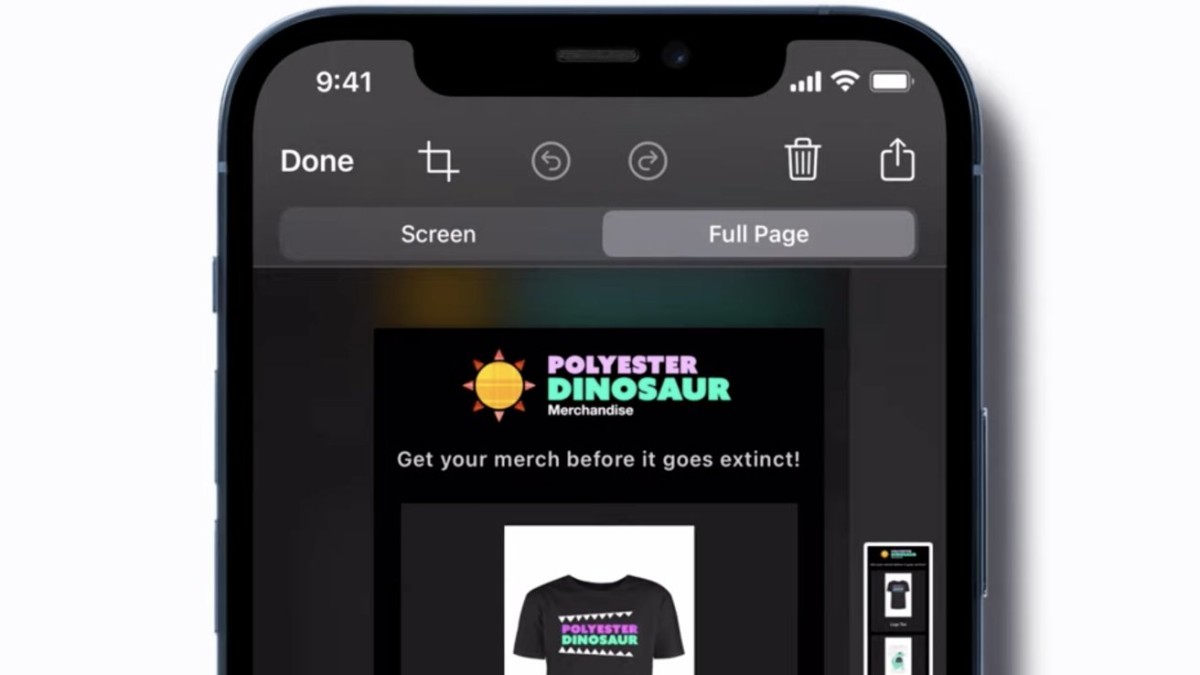
To take a full-page screenshot on an iPhone, follow these steps:
- Navigate to the content you want to capture, such as a webpage in Safari.
- Press the side button and the volume up button simultaneously to capture a screenshot. For iPhones with a Home button, press the Home button and the Sleep/Wake button together instead.
- Tap the screenshot preview that appears in the bottom left corner of the screen.
- Select the "Full Page" option at the top of the screen.
- Use the preview on the right to view the entire page. You can also use the crop tool if you need to trim any part of the screenshot.
- Tap "Done" in the top left corner, then choose "Save PDF to Files" to save the full-page screenshot.
- Choose the location in your Files app where you want to save the screenshot and tap "Save."
This process captures the entire content of a webpage or document beyond what is visible on the screen, saving it as a PDF file in the Files app.





