
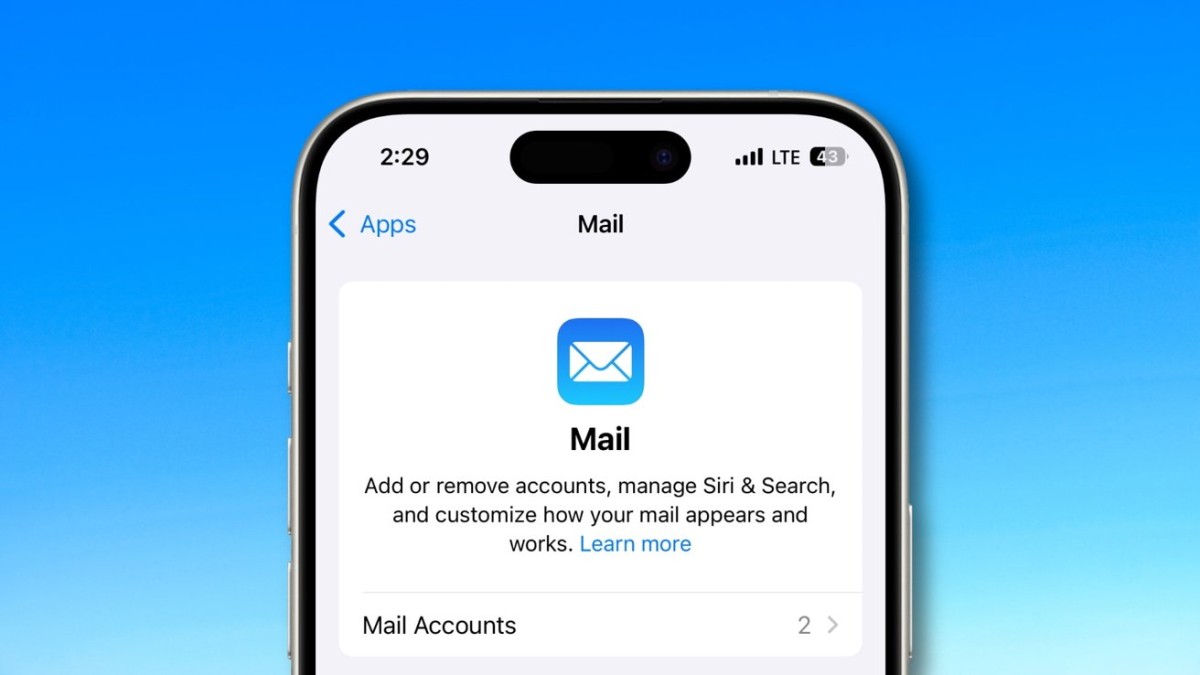
Do constant iCloud junk mail notifications disrupt your day? You’re not alone. With iOS, you can silence these alerts and keep them confined to the Mail app — no more interruptions, just a cleaner, quieter experience.
Why It Matters
Junk mail notifications can clutter your digital space, interrupt your workflow, and even add unnecessary stress. By disabling them, you create a smoother, distraction-free environment, allowing you to focus on what truly matters.
Push vs. Fetch: Understanding Email Delivery
Before diving into the fix, it’s helpful to understand iOS’s email-fetching options:
- Push: Emails arrive instantly, giving you real-time updates but at the cost of higher battery consumption.
- Fetch: Your device checks for emails at set intervals (e.g., 15 minutes, hourly). It’s more battery-friendly but introduces slight delays.
By default, iCloud mailboxes, including the Junk folder, use Push notifications. While this ensures instant updates, it’s unnecessary for less important emails, like junk.
How to Turn Off Junk Mail Notifications
Here’s how you can put a stop to junk mail alerts on your iPhone:
- Open the Settings app.
- Scroll down and tap Mail.
- Select Mail Accounts > Fetch New Data.
- Tap iCloud and look under the Pushed Mailboxes section.
- Choose the Junk mailbox and set it to manual or fetch as needed.
That’s it! Junk emails will still go to your Mail app’s Junk folder, but you won’t be bothered by notifications on your Lock Screen.
The Bottom Line
Managing iCloud mail settings can streamline your email experience, minimize distractions, and improve productivity. Take control of your notifications today for a calmer digital life.





