
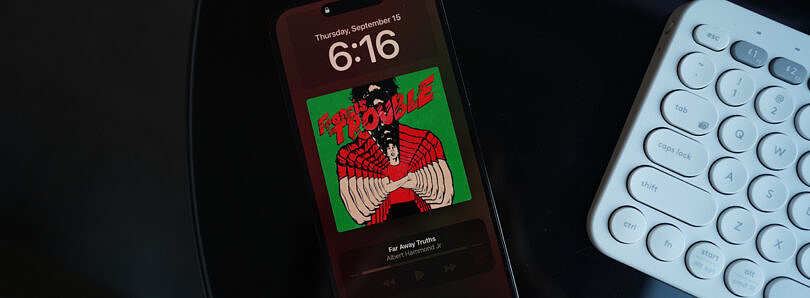
Unlike the typical Always-On Display execution on Android smartphones, the iPhone goes for a colorful look. So instead of getting an all-black screen displaying the time and notifications, your wallpaper just dims, staying truer to the term “always on”. Some people have complained about it being too bright or distracting, or even too minimalistic. However, plenty of other users appreciate how it looks more vibrant and alive. Here’s how to set up and enable the AOD feature on an iPhone 14 Pro or Pro Max.
Setting up Always-On Display on a compatible iPhone
Before we start, make sure you have an iPhone 14 Pro or iPhone 14 Pro Max. The regular iPhone 14 and 14 Plus are incompatible with this feature.
- Launch the Settings app.
- Head to the Display & Brightness section.
- Scroll down to spot the Always On toggle.
- Enable Always On.
- Voila! Now, every time your iPhone goes to sleep, it’ll enter the Always-On Display mode. Unfortunately, Apple still doesn’t allow users to customize this view individually. So the AOD mode will always be a dimmed reflection of your regular Lock Screen. If you would like to tweak the AOD, you will have to adjust the Lock Screen accordingly.





