
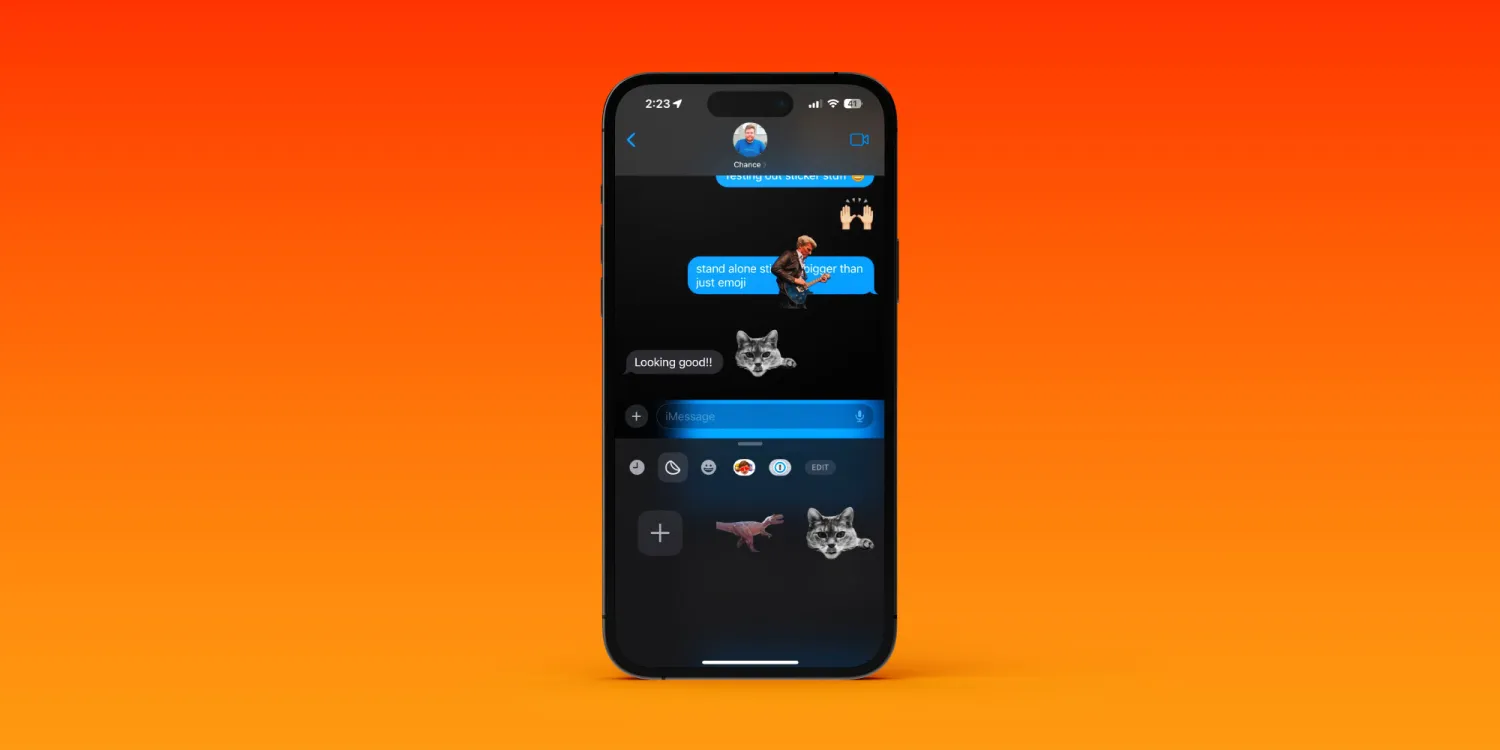
Arriving as a big expansion beyond the six Tapback reactions with iMessage, Apple has an all-new iPhone Messages stickers experience with iOS 17.
There’s tons of fun and customization with the ability to easily make your own static or GIF-style stickers. And you can now use and place any of the emoji, Animoji, Memoji, or even third-party app stickers anywhere in a message.
iPhone Messages stickers: How to make and use with iOS 17
iOS 17 is currently in beta. Read more on how to install the software if you’d like to test out features like this and more. Keep in mind features can change during the beta period.
- On iPhone running iOS 17, open the Messages app
- Tap the + icon to the left of the text field
- Now choose Stickers
- Tap the sticker icon (next to the recents clock icon) and choose the “New Sticker” button to make one or tap the emoji or Memoji icon to use existing stickers (read more below on how to make and customize stickers)
- Drag a sticker into a message and let go to place it where you’d like
- If you just tap a sticker from the sticker drawer, you can send it in the message like an emoji or text
- Alternatively, you can make stickers directly in the Photos app by long pressing on a subject in an image, letting go, then tapping Add Sticker





