
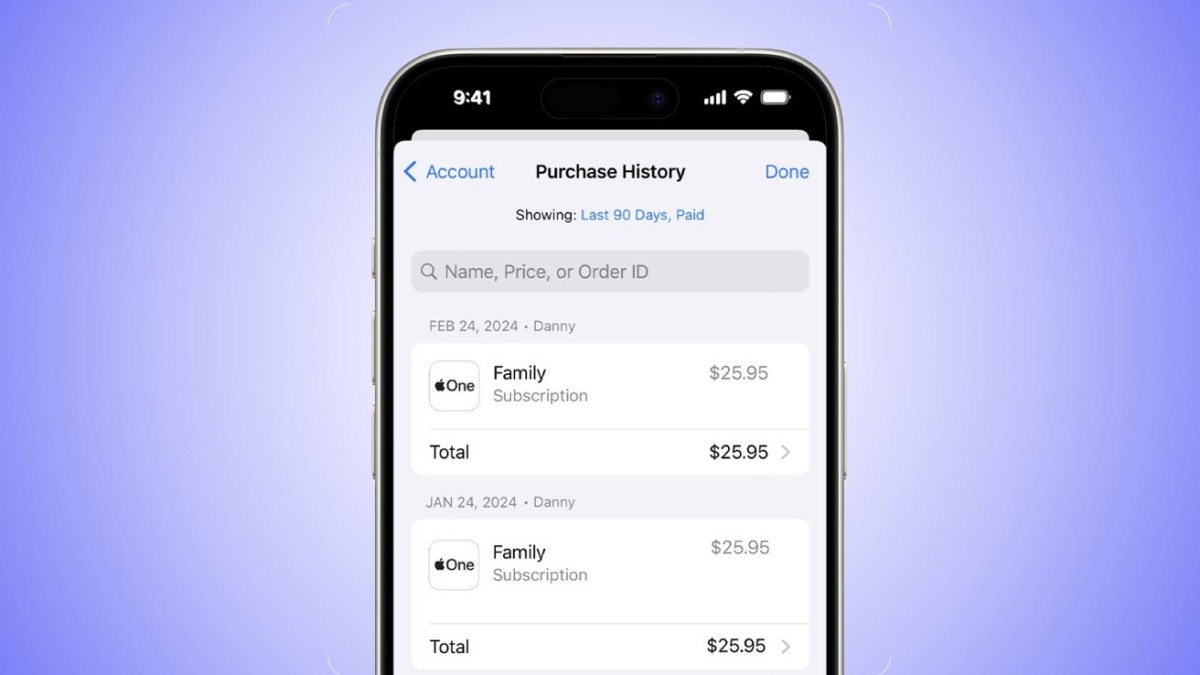
Have you ever accidentally deleted an app or needed to verify a subscription charge on your Apple devices? Fear not! Here's a quick and easy way to access your complete purchase history on the App Store, ensuring you never lose track of your digital investments.
Checking Your Purchase History on iPhone or iPad:
- Open Settings and tap on your name at the top.
- Select "Media & Purchases" and sign in to your Apple ID if prompted.
- Tap "View Account" and then "Purchase History."
- Filter your list by the last 90 days, paid purchases, or free downloads.
- Easily search for specific purchases by name or order ID.
Managing Purchases on Mac or PC:
- Using Safari or any web browser, go to reportaproblem.apple.com.
- Sign in with your Apple ID to access your purchase history.
- In the Music app, click on "Account" in the menu bar, then choose "Account Settings."
- Scroll down to "Purchase History" and click "See All" to view your past purchases.
- Unhide any hidden purchases by navigating to "Download and Purchases" if needed.
Dealing with Unexpected Charges:
If you notice any unfamiliar charges, first check with family members who may have accessed your Apple ID. Set up password requirements for purchases if necessary. If issues persist, request a refund for unrecognized purchases or subscriptions.
Reporting Problems:
Encounter a problem? Click on "Report a Problem" to initiate correspondence with Apple support and swiftly resolve any issues.
Stay in control of your digital transactions effortlessly with these handy tips!





