
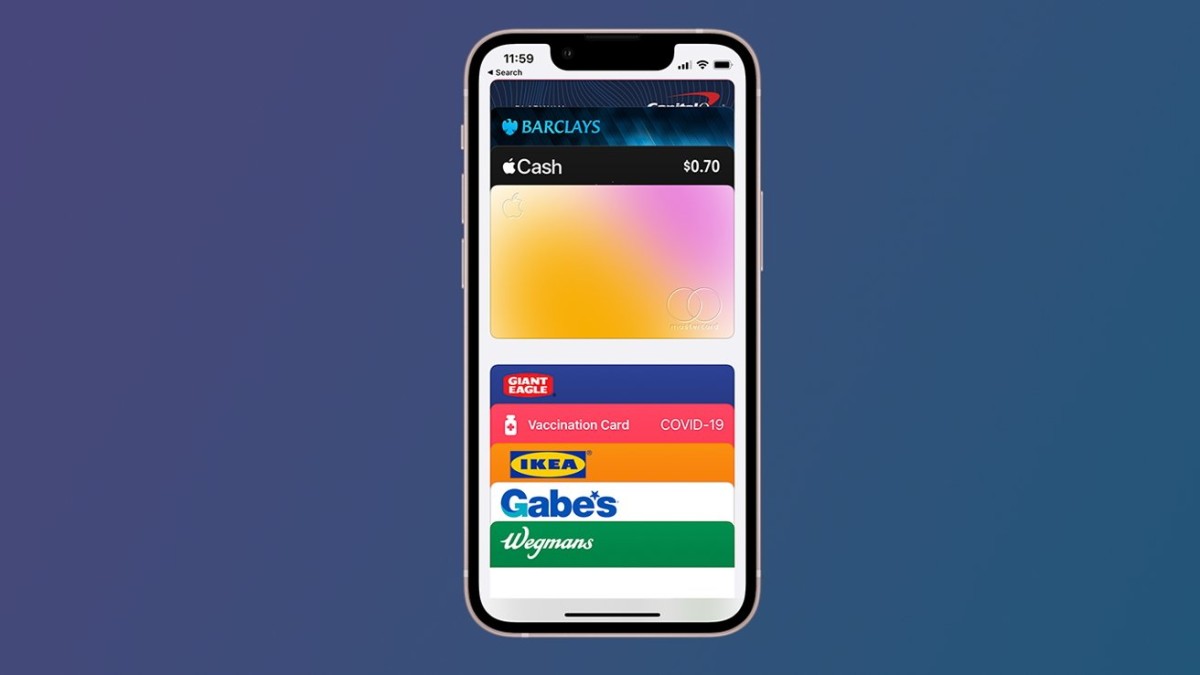
Storing credit and debit cards in the iPhone Wallet app is common knowledge, but it can also hold your reward and membership cards. Over time, many of us accumulate a collection of these cards, which tend to be misplaced exactly when we need them.
To avoid the hassle of searching through your wallet, purse, or bag, consider adding your rewards cards to the Wallet App.
Although some rewards cards can be added directly through a company's app or website, many do not support direct addition to your iPhone. For such cards, a straightforward solution exists. In this guide, we'll use Pass2U, a well-regarded app for managing Wallet contents, which offers a basic free version and a more feature-rich version for a one-time fee of $1.99.
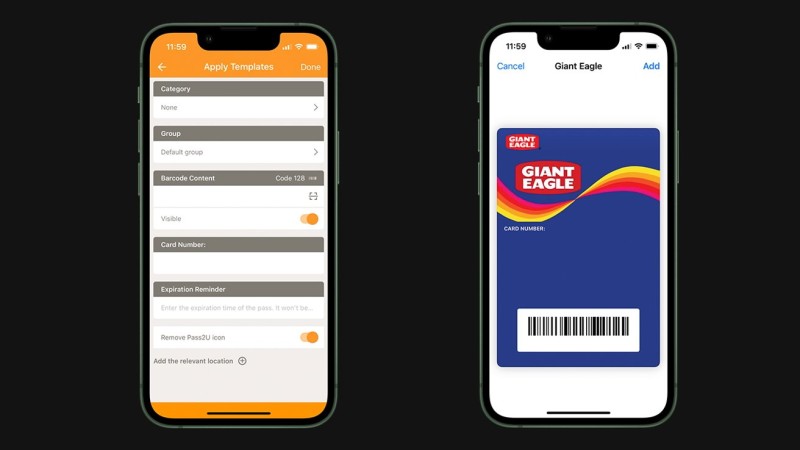
How to Incorporate Unsupported Rewards or Membership Cards into iPhone
- Install Pass2U: Begin by downloading the Pass2U app onto your iPhone.
- Open Pass2U: Launch the app once it's installed.
- Search for Your Card: Tap the Search icon at the top and enter the name of your rewards or membership card.
- Select a Template: Browse through the available templates to find one you prefer, then select it.
- Enter Card Details: Follow the prompts to fill in the necessary information about your card.
- Scan Your Card's Barcode: Use the app's scanning feature to capture your card's barcode.
- Complete the Process: After entering all required details and scanning the barcode, tap Done to finish.
If you opt for the Pro version of Pass2U, you gain the ability to craft custom templates, offering a more personalized touch to your digital wallet.





