
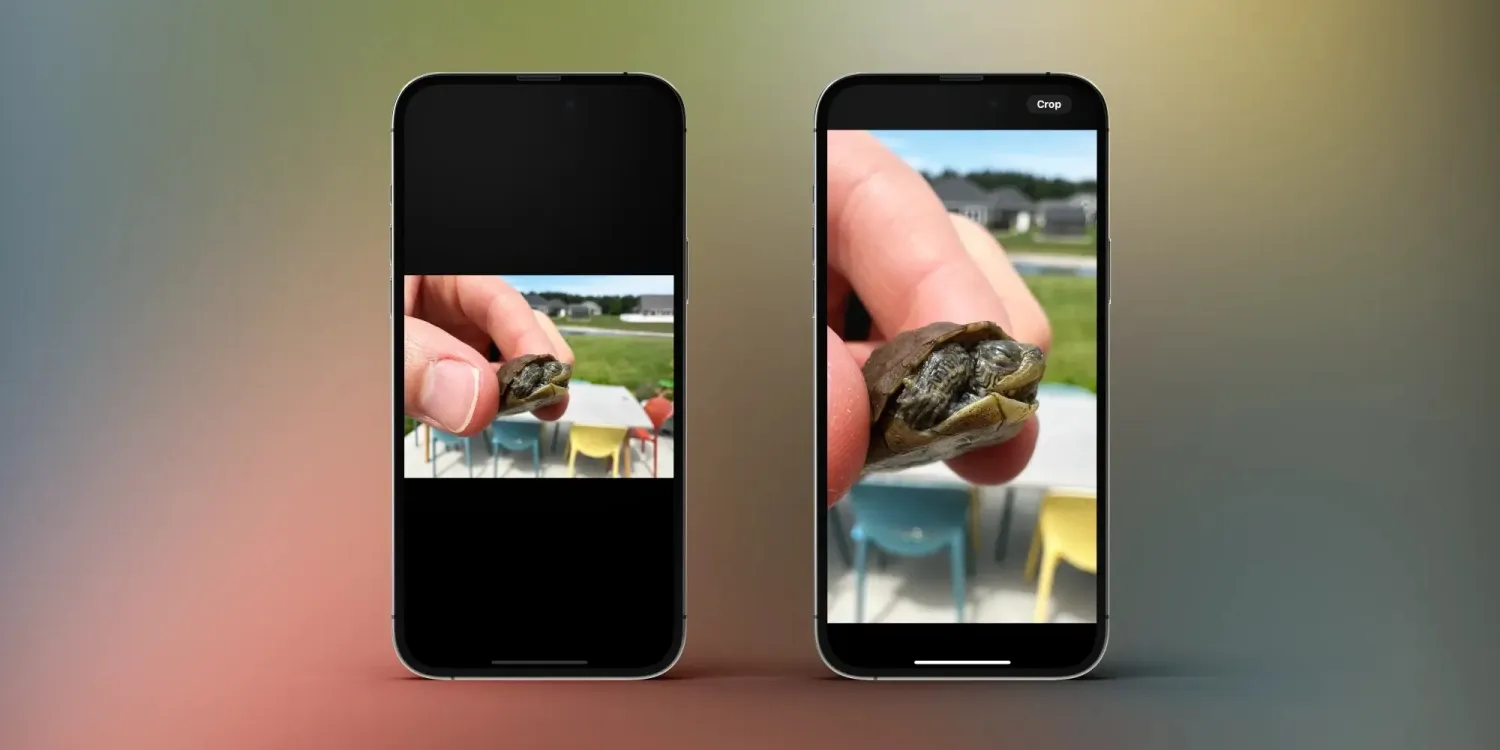
There are a range of flashier new features with iOS 17 like the StandBy smart display mode, stickers in Messages, Contact Posters, and more.
But iOS 17 offering functional upgrades like the ability to auto delete iPhone verification codes after they’ve been used and quick crop on iPhone are very welcome changes that will be useful every day for many users.
How to use quick crop on iPhone Photos app in iOS 17
iOS 17 is currently in beta. Read more on how to install the software if you’d like to test out features like this and more. Keep in mind features can change during the beta period.
- On iPhone running iOS 17, open the Photos app
- Find a photo you’d like to crop and view it
- Do a two-finger expand gesture on the photo
- Tap the Crop button in the top right corner
- If you like how it is (including the new aspect ratio), tap Done, if not you can further edit your crop
- After zooming in on a photo in iOS 17, the new Crop button will show up in the top right corner for about four seconds, then disappear
- Keep in mind if you zoom in on a photo and choose crop, it will keep whatever aspect ratio you’ve got on screen
- If you want to keep the cropped aspect ratio closer to the original, you’ll need to adjust the frame of the crop before tapping the Done button





