
The Action button sits in the same place as the side switch on previous iPhone models and works with a long press.
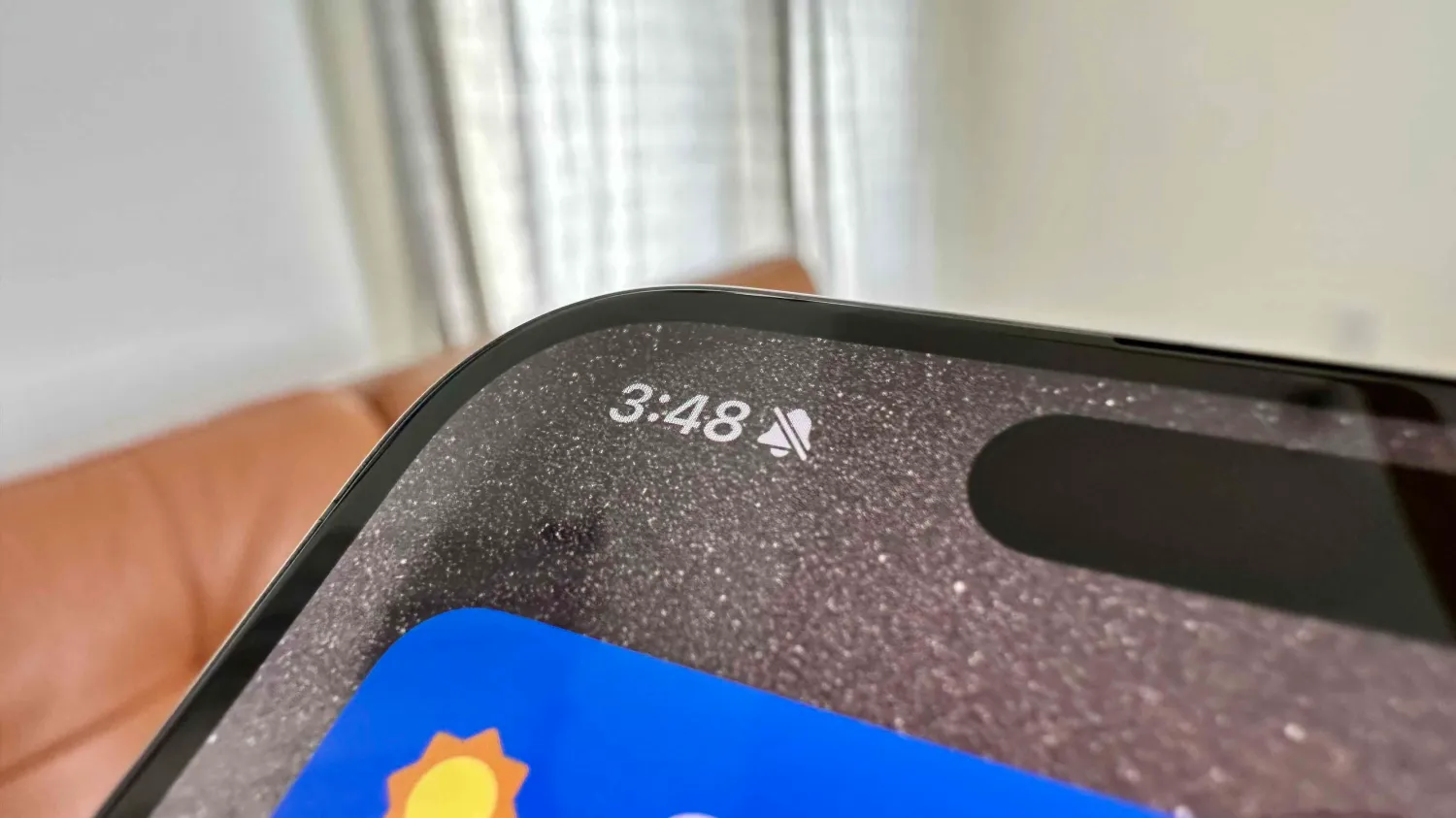
The default is set to turn silent mode on and off. But even if you customize the Action button to control something else, a new silent bell icon shows in the iPhone 15 Pro status bar right next to the time.
Spotted by MKBHD, the good news is there’s a quick fix in Settings to remove the silent mode icon.
How to hide silent bell icon on iPhone 15 Pro
- Open the Settings app on your iPhone 15 Pro or Pro Max
- Choose Sounds & Haptics near the top
- Tap the second toggle down next to Show in Status Bar to hide silent bell
And if you haven’t customized your Action button yet, navigate to Settings > Action button. Here are the options for the new button:
- Silent mode (default)
- Focus mode
- Camera
- Flashlight
- Voice Memo
- Shortcut
- Accessibility features like magnifier and more
- No Action
- Translate will arrive with an update “later this year”
If you change the Action button to activate something other than silent mode, you can turn silent on/off from Control Center or Settings > Sounds & Haptics.
Are you going to hide the silent bell or do you prefer to keep it? Share your thoughts in the comments!





