
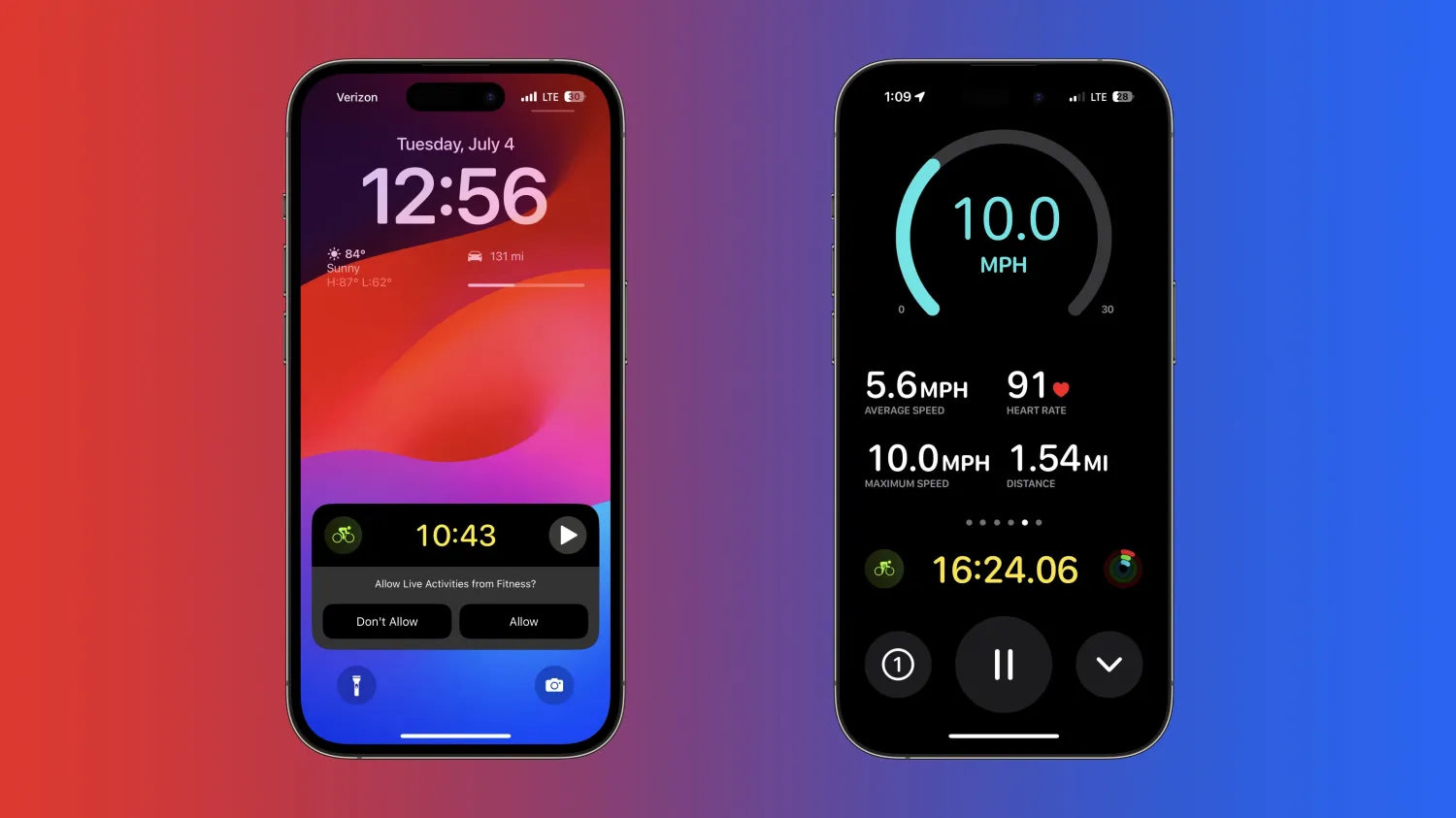
The new cycling workout views for iPhone have been optimized for the larger screen so you can easily view and swipe between your metrics during your ride.
Notably, a new Cycling Speed view shows current, average, and max speed – something Apple users have had to use a third-party app or system for in the past.
While this new feature won’t fully compete with apps like Strava – particularly for serious athletes or those that like the social sharing aspect – the new live iPhone cycling metrics will probably be great for the majority of people who want to track their rides and have an Apple Watch.
If you don’t have an iPhone bike mount already, I love the Nomad x Peak Design Rugged Case paired with Peak Design’s magnetic hard lock Out Front Bike Mount. It offers an adjustable, and super secure design that sits centered on your handlebars.
How to see Apple Watch live cycling metrics on iPhone with iOS 17
iOS 17 and watchOS 10 are currently in beta. Read more on how to install the software if you’d like to test out features like this and more. And keep in mind features can change during the beta period.
- With your Apple Watch running watchOS 10 and iPhone on iOS 17, start a cycling workout on your watch
- Now look on your iPhone Lock Screen for the new Live Activity functionality, tap Allow
- Tap the cycling workout Live Activity on iPhone to get the full-screen experience
- With the default view, you’ll see heart rate, average speed, elevation gained, distance, time elapsed, and split – and you can swipe to see even more metrics
- You can pause the ride, lock controls, stop viewing, and end the workout by tapping the drop-down arrow





